Figure.1
| PolarSPARC |
Claude Code Adventures - Part 1
| Bhaskar S | 02/07/2026 |
Overview
Claude Code (aka Claude) has taken the world by storm and is spreading fast and furious like a wildfire !!!
Claude Code is a natural language, conversational, agentic coding tool that primarily integrates with a users terminal (command line interface) to take autonomous actions.
Claude can navigate and understand a codebase for any project in order to thoughtfully answer any questions related to that codebase.
While Claude excels at coding tasks, it can also help with anything one can do from the command line, such as, writing docs, running commands, searching files, researching topics, and much more.
Claude uses a specified LLM model along with tools (both built-in and user supplied) in a Reason and Act loop that is broken into three core phases: Gather Context, Take Action , and Verify Results, with an option for each of the three phases seeking input from the user for additional context to continue or steer in a different direction.
Installation and Setup
The installation and setup will can on a Ubuntu 24.04 LTS based Linux desktop.
To install Claude Code, execute the following command in a terminal window:
$ curl -fsSL https://claude.ai/install.sh | bash
At the time of this article, the following was the typical output:
Setting up Claude Code...

+ Claude Code successfully installed!

  Version: 2.1.36

  Location: ~/.local/bin/claude

  Next: Run claude --help to get started

+ Installation complete!
Create a trusted directory for Claude projects by executing the following command in the terminal window:
$ mkdir -p $HOME/Projects/Claude
Launch Claude Code by executing the following commands in the terminal window:
$ cd $HOME/Projects/Claude
$ claude
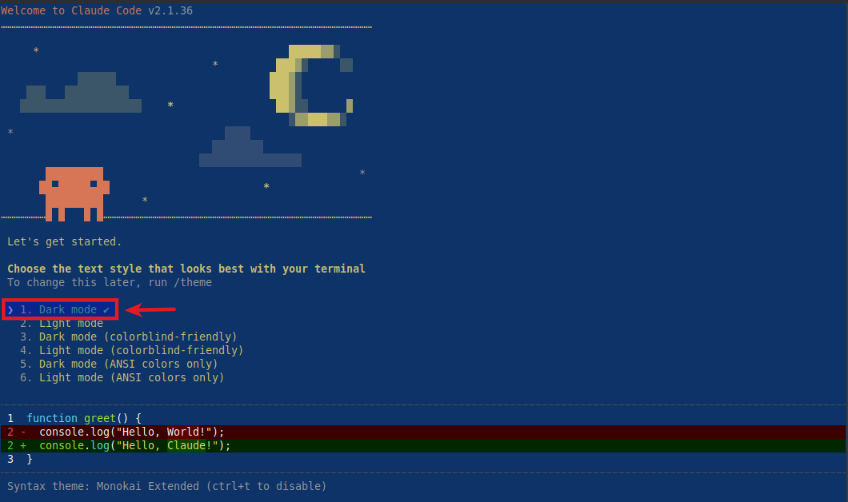
The user would be presented with the following prompt to choose a text style:
Choose the option 1. Dark mode and press enter to continue.
Next, the user would be presented with the following prompt to choose the subscription option:
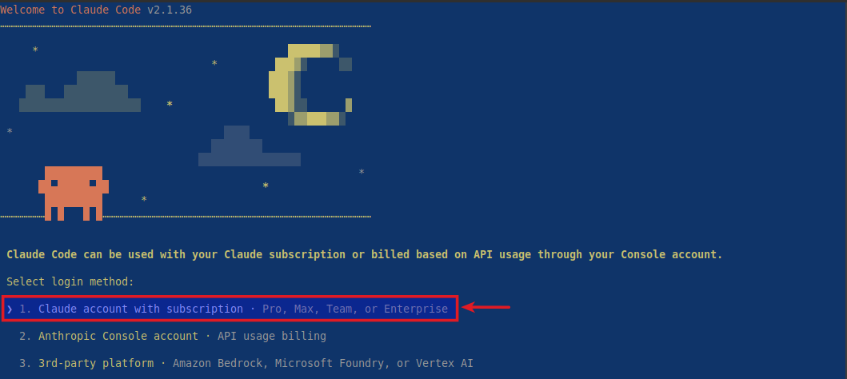
Assuming the user has a Claude subscription, choose the option 1. Claude accout with subscription and press enter to continue. The user will be take to a browser to login and activate.
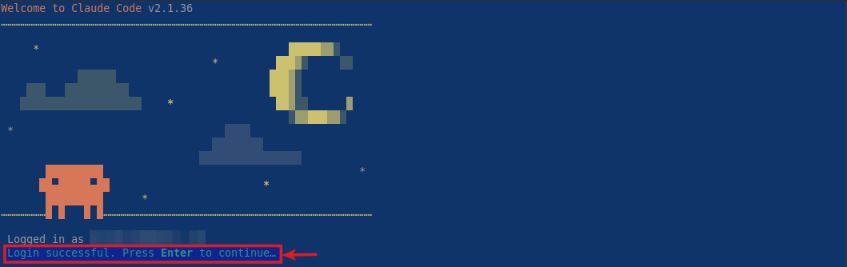
Once the user has successfully logged and activated the subscription from the browser, the user is prompted to press Enter to continue as shown below:
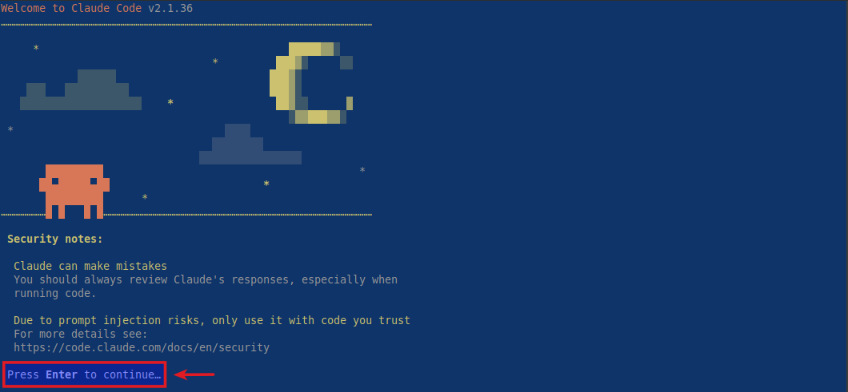
Next, the user is presented with some disclaimers and prompted to press Enter to continue as shown below:
Next, the user is prompted to press Enter to trust the current folder as shown below:
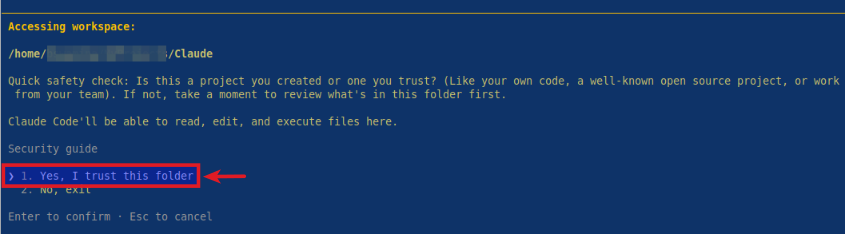
Choose the option 1. Yes, I trust this folder and press enter to continue.
Finally, the user setup is complete and Claude is waiting for user input as shown below:
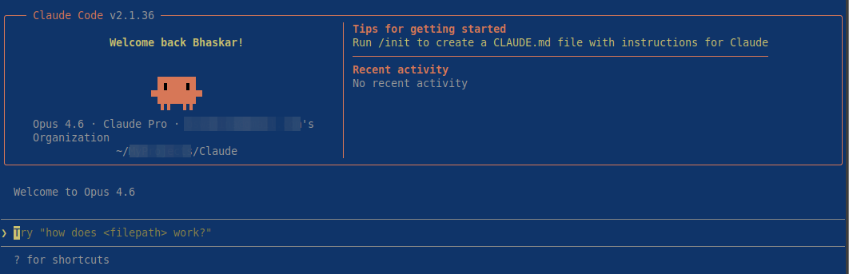
At this point, the user can now enter any request and press enter to continue for Claude to jump into action !!!
Hands-on with Claude
Claude includes a set of pre-defined tasks in the form of / (slash) commands. The following table summarizes some of the slash commands:
| Slash Command | Description |
|---|---|
| /help | Display information on help and available commands |
| /config | Open the configuration settings |
| /context | Display the current context usage |
| /stats | Display daily usage, session history, etc |
| /usage | Display the usage limits (only for subscription plans) |
| /clear | Clears the current conversational context |
| /exit | Exit claude |
When a user keys in the /help command and presses the Enter key, Claude displays help information and allows the user to navigate to commands and custom-commands using the Left-Arrow key. The following illustration depicts the three screenshots:
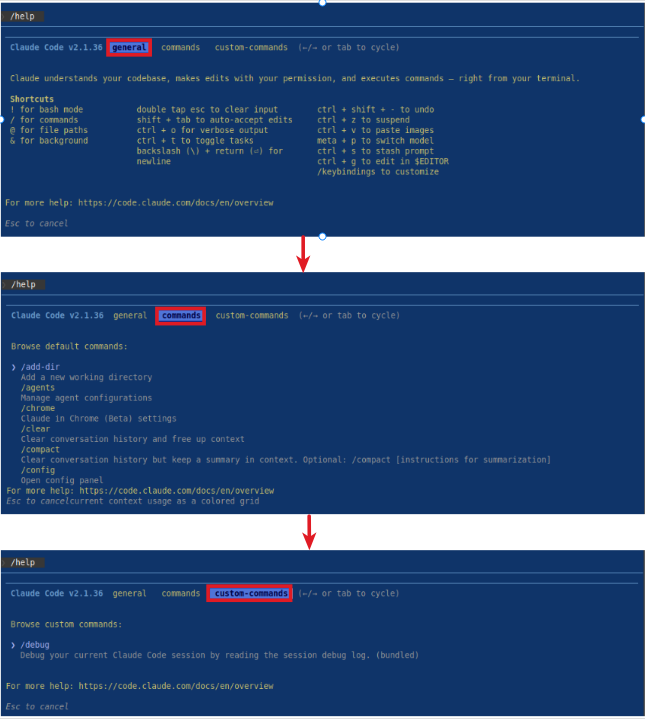
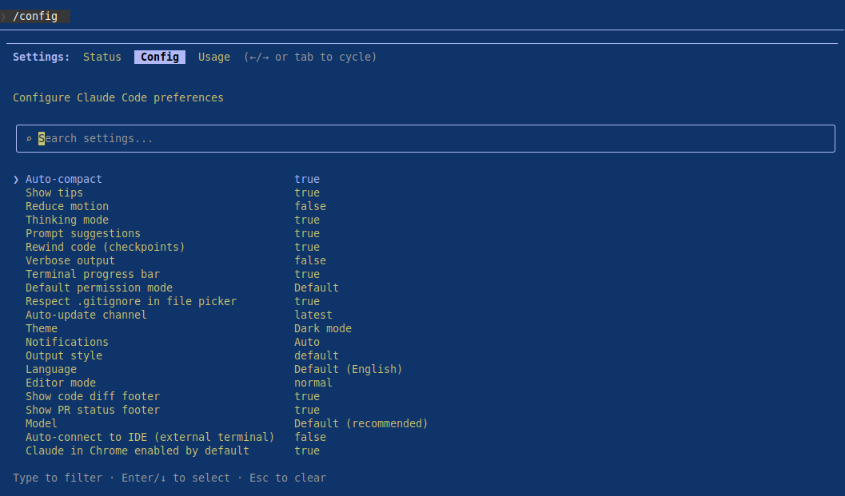
When a user keys in the /config command and presses the Enter key, Claude opens the configuration settings and allows the user to make changes if necessary. The following illustration shows the screenshot:
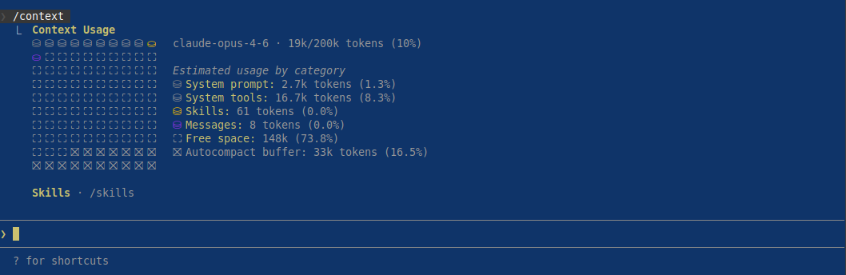
When a user keys in the /context command and presses the Enter key, Claude displays a detailed breakdown of the users current session token usage, allowing one to see how many tokens in the context window is occupied by system prompts, tools, file content, and conversation history. The following illustration shows the screenshot:
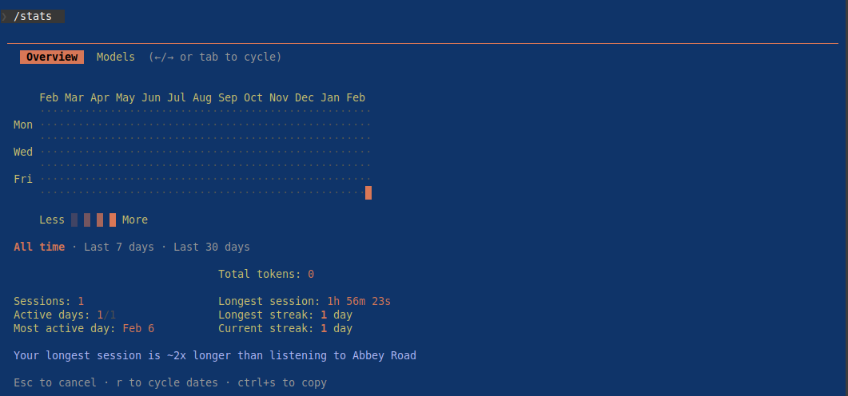
When a user keys in the /stats command and presses the Enter key, Claude displays a real-time visual of the usage patterns, including the most-used model, activity streaks, etc. The following illustration shows the screenshot:
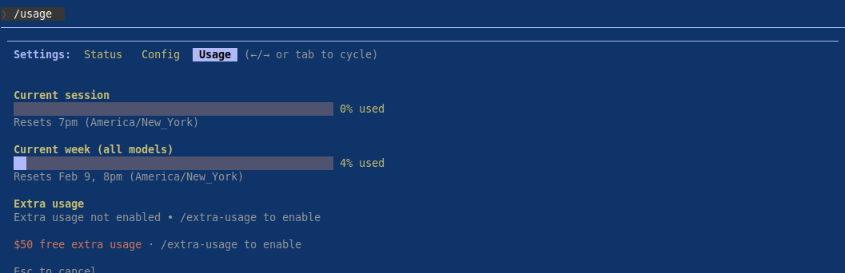
When a user keys in the /usage command and presses the Enter key, Claude displays the users token consumption and usage against subscription limits. The following illustration shows the screenshot:
When a user keys in the /exit command and presses the Enter key, Claude exits the user requests loop and terminates. The following illustration shows the screenshot:

With this, we conclude the Part 1 of the Claude adventure series !!!
References