Figure.1
| PolarSPARC |
Claude Code Using Local Model
| Bhaskar S | 05/16/2026 |
Overview
Claude Code (aka Claude) is an AI assisted coding and research tool that is popular amongst a spectrum of users - from technical to non-technical !!!
Claude Code is a natural language, conversational, agentic coding tool that primarily integrates with a users terminal (command line interface) to help with anything one can do from the command line, such as, writing docs, running commands, searching files, researching topics, and much more.
Claude Code by default uses proprietary LLM models from Anthropic such as, Haiku, Sonnet, and Opus.
Most user(s) are unaware that Claude Code can also leverage local LLM models such as the popular Qwen from Alibaba or Gemma from Google.
In this short article, we will demonstrate how one can configure Claude Code to use a local LLM model Qwen 3.6-27B-3B served from llama.cpp.
Installation and Setup
The installation and setup will can on a Ubuntu 24.04 LTS based Linux desktop. Ensure that Docker is installed and setup on the desktop (see INSTRUCTIONS).
To install Claude Code, execute the following command in a terminal window:
$ curl -fsSL https://claude.ai/install.sh | bash
At the time of this article, the following was the typical output:
Setting up Claude Code...

+ Claude Code successfully installed!

  Version: 2.1.143

  Location: ~/.local/bin/claude

  Next: Run claude --help to get started

+ Installation complete!
Create a trusted directory for Claude projects by executing the following command in the terminal window:
$ mkdir -p $HOME/MyProjects/Claude
Next, we will create the required models directory by executing the following command in a terminal window:
$ mkdir -p $HOME/.llama_cpp/models
From the llama.cpp docker RESPOSITORY, one can identify the current version of the docker image. At the time of this article, the latest version of the docker image ended with the version b9174.
We require the docker image with the tag word full. If the desktop has an Nvidia GPU, one can look for the docker image with the tag words full-cuda.
To pull and download the full docker image for llama.cpp with CUDA support, execute the following command in a terminal window:
$ docker pull ghcr.io/ggml-org/llama.cpp:full-cuda-b9174
The following should be the typical output:
full-cuda-b9174: Pulling from ggml-org/llama.cpp
5a7813e071bf: Pull complete
a102f36d092c: Pull complete
05ec76e31584: Pull complete
398182656c47: Pull complete
73389fbd088f: Pull complete
cbb9175a9bc5: Pull complete
3d6ab8c799cd: Pull complete
7209097bfb98: Pull complete
545a3ada5b6b: Pull complete
78b86fd7e3b2: Pull complete
adbd859efcfe: Pull complete
1c4df2eec19f: Pull complete
4f4fb700ef54: Pull complete
8c7a07039685: Pull complete
Digest: sha256:84e4e8062542ac10e1f4e432fa8f5c8384a79453ab7367865c49ba2215eacf44
Status: Downloaded newer image for ghcr.io/ggml-org/llama.cpp:full-cuda-b9174
ghcr.io/ggml-org/llama.cpp:full-cuda-b9174
Next, we will download the Qwen 3.6 LLM model from Huggingface - the bartowski/Qwen_Qwen3.6-35B-A3B-GGUF model.
Download Qwen 3.6 35B A3B (4-bit) model to the directory $HOME/.llama_cpp/models.
To start the llama.cpp server for serving the Qwen 3.6 35B A3B (4-bit) model, execute the following command in the terminal window:.
$ docker run --rm --name llama_cpp --gpus all --network host -v $HOME/.llama_cpp/models:/models ghcr.io/ggml-org/llama.cpp:full-cuda-b9174 --server --model /models/Qwen_Qwen3.6-35B-A3B-Q4_K_M.gguf --alias qwen3.6-a3b --host 192.168.1.25 --port 8000 --device CUDA0 --temp 1.0 --top_k 64 --top_p 0.95 --no-mmap --threads 4 --ctx-size 65536 --flash-attn on -ctk q4_0 -ctv q4_0
The following should be the typical trimmed output:
ggml_cuda_init: found 1 CUDA devices (Total VRAM: 15944 MiB):
  Device 0: NVIDIA GeForce RTX 4060 Ti, compute capability 8.9, VMM: yes, VRAM: 15944 MiB
load_backend: loaded CUDA backend from /app/libggml-cuda.so
load_backend: loaded CPU backend from /app/libggml-cpu-haswell.so
main: n_parallel is set to auto, using n_parallel = 4 and kv_unified = true
build_info: b8925-0adede866
system_info: n_threads = 4 (n_threads_batch = 4) / 16 | CUDA : ARCHS = 500,610,700,750,800,860,890,1200 | USE_GRAPHS = 1 | PEER_MAX_BATCH_SIZE = 128 | CPU : SSE3 = 1 | SSSE3 = 1 | AVX = 1 | AVX2 = 1 | F16C = 1 | FMA = 1 | BMI2 = 1 | LLAMAFILE = 1 | OPENMP = 1 | REPACK = 1 |
Running without SSL
init: using 15 threads for HTTP server
start: binding port with default address family
main: loading model
srv    load_model: loading model '/models/Qwen_Qwen3.6-35B-A3B-Q4_K_M.gguf'
...[TRIM]...
common_fit_params: successfully fit params to free device memory
common_fit_params: fitting params to free memory took 3.12 seconds
llama_model_load_from_file_impl: using device CUDA0 (NVIDIA GeForce RTX 4060 Ti) (0000:04:00.0) - 15336 MiB free
llama_model_loader: loaded meta data with 48 key-value pairs and 733 tensors from /models/Qwen_Qwen3.6-35B-A3B-Q4_K_M.gguf (version GGUF V3 (latest))
...[TRIM]...
llama_context: n_seq_max     = 4
llama_context: n_ctx         = 65536
llama_context: n_ctx_seq     = 65536
llama_context: n_batch       = 2048
llama_context: n_ubatch      = 512
llama_context: causal_attn   = 1
llama_context: flash_attn    = enabled
llama_context: kv_unified    = true
llama_context: freq_base     = 10000000.0
llama_context: freq_scale    = 1
llama_context: n_ctx_seq (65536) < n_ctx_train (262144) -- the full capacity of the model will not be utilized
llama_context:  CUDA_Host  output buffer size =     3.79 MiB
llama_kv_cache:      CUDA0 KV buffer size =   360.00 MiB
llama_kv_cache: size =  360.00 MiB ( 65536 cells,  10 layers,  4/1 seqs), K (q4_0):  180.00 MiB, V (q4_0):  180.00 MiB
llama_kv_cache: attn_rot_k = 1, n_embd_head_k_all = 256
llama_kv_cache: attn_rot_v = 1, n_embd_head_k_all = 256
llama_memory_recurrent:      CUDA0 RS buffer size =   251.25 MiB
llama_memory_recurrent: size =  251.25 MiB (     4 cells,  40 layers,  4 seqs), R (f32):   11.25 MiB, S (f32):  240.00 MiB
...[TRIM]...
main: model loaded
main: server is listening on http://192.168.1.25:8000
main: starting the main loop...
srv  update_slots: all slots are idle
This completes the necessary setup to test Claude Code using local LLM model(s) !!!
Hands-on with Claude using Local Model
Launch Claude Code by executing the following commands in the terminal window:
$ cd $HOME/MyProjects/Claude
$ MODEL="qwen3.6-a3b" ANTHROPIC_DEFAULT_HAIKU_MODEL="$MODEL" ANTHROPIC_DEFAULT_SONNET_MODEL="$MODEL" ANTHROPIC_DEFAULT_OPUS_MODEL="$MODEL" ANTHROPIC_BASE_URL="http://192.168.1.25:8000" ANTHROPIC_AUTH_TOKEN="ollama" ANTHROPIC_API_KEY="" DISABLE_TELEMETRY="1" claude --model "$MODEL"
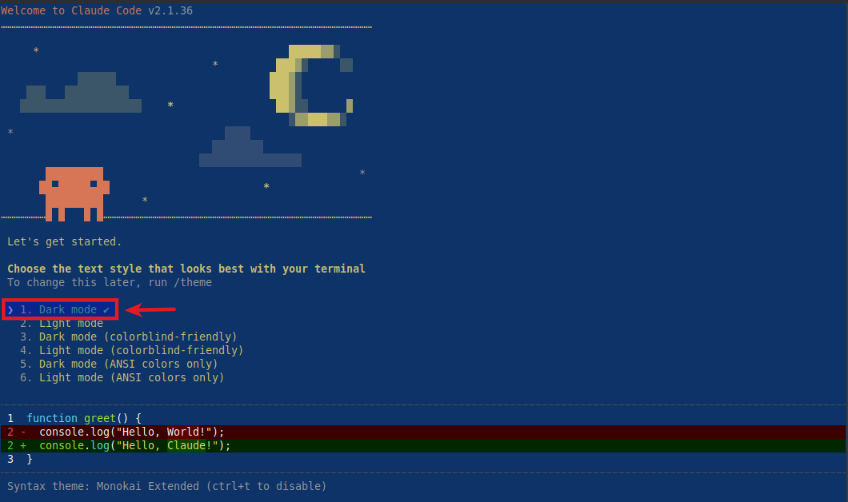
The user would be presented with the following prompt to choose a text style:
Choose the option 1. Dark mode and press enter to continue.
Next, the user is presented with some disclaimers and prompted to press Enter to continue as shown below:
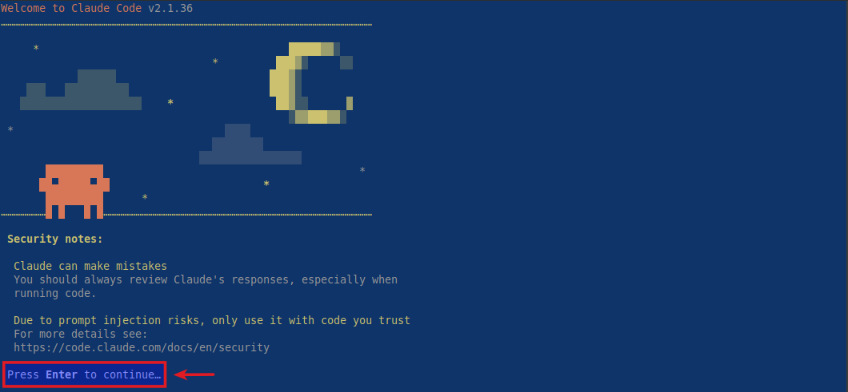
Next, the user is prompted to press Enter to trust the current folder as shown below:
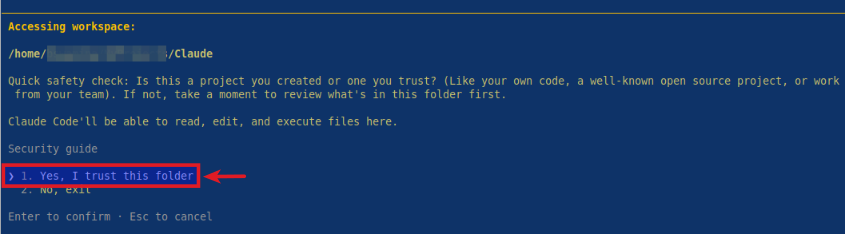
Choose the option 1. Yes, I trust this folder and press enter to continue.
Finally, the user setup is complete and Claude is waiting for user input as shown below:
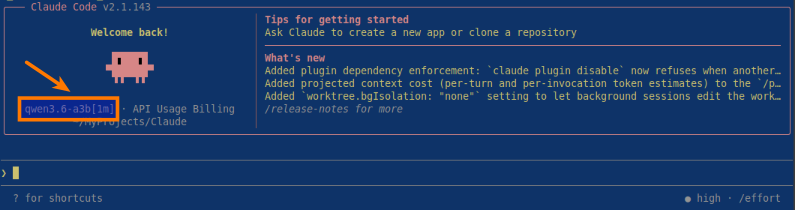
BOOM - Notice that Claude Code is using the local qwen3.6-a3b LLM model !!!
At this point, the user can now enter any request and press enter to continue for Claude to jump into action !!!
References