Figure.1
| PolarSPARC |
Claude Code Adventures - Part 2
| Bhaskar S | 02/16/2026 |
Overview
In Part 1 of this series, we covered the installation and setup of Claude plus got our hands dirty with some '/' (slash) commands.
In this part, we will cover the topics on additional settings, conversational session memory, etc.
Hands-on with Claude
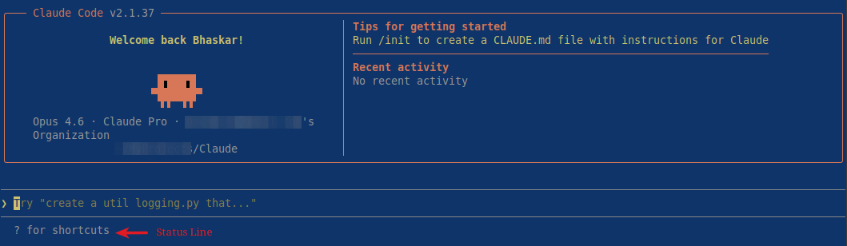
The bottom line of the Claude interface is the Status Line and the default text is set to ? for shortcuts as shown in the illustration below by the red arrow:
One can customize the status line and other aspects of Claude by changing the configuration settings is defined in a JSON file called settings.json.
The settings file located at $HOME/.claude/settings.json applies to all the projects for the user, while the settings file located within a specific project at .claude/settings.json applies just to that project.
Note that the configuration in the settings file for a specific project at .claude/settings.json overrides the configuration in the settings file located at $HOME/.claude/settings.json.
For the demonstration, we will modify the settings file located at $HOME/.claude/settings.json.
By default, the contents of the settings file is an empty json as shown below:
{}
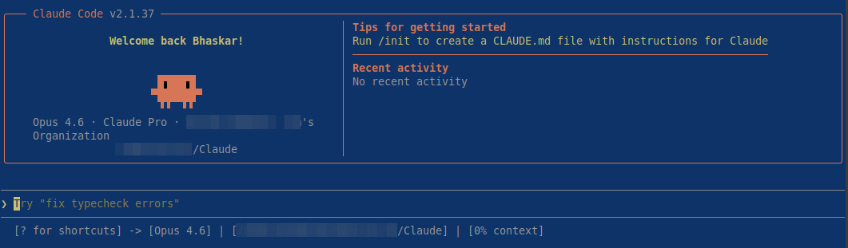
Let us change the default status line to include the model name, the current directory, and the percentage of context window used. The following should be the modified contents as shown below:
{
    "$schema": "https://json.schemastore.org/claude-code-settings.json",
    "statusLine": {
        "type": "command",
        "command": "jq -r '\"[? for shortcuts] -> [\\(.model.display_name)] | [\\(.workspace.current_dir)] | [\\(.context_window.used_percentage // 0)% context]\"'"
    }
}
Note that the command which updates the status line in Claude receives the JSON session data via the Standard Input (stdin). That is what is being parsed by the jr command to extract the desired fields for display.
Saving the changes to the above settings file will immediately change the status line as shown in the illustration below:
Claude internally uses pre-built tools to perform various tasks. The following table summarizes some of the built-in tools:
| Tool | Description |
|---|---|
| Bash | Used for executing shell commands in a separate context |
| Edit | Used for making targeted edits to specific files |
| Glob | Used for finding files by pattern matching names |
| Grep | Used for finding text/code patterns in files |
| Read | Used for reading the contents of files |
| WebFetch | Used for fetching content from a specific URL |
| WebSearch | Used to performing web searches with domain filtering |
One can alter the behavior of Claude (via the settings file) to prevent execution of any destructive command(s) using the Bash tool or consume the contents of the *.env file(s) which may contain secrets or API keys using the Read tool.
The following should be the modified contents of the settings file as shown below:
{
    "$schema": "https://json.schemastore.org/claude-code-settings.json",
    "statusLine": {
        "type": "command",
        "command": "jq -r '\"[? for shortcuts] -> [\\(.model.display_name)] | [\\(.workspace.current_dir)] | [\\(.context_window.used_percentage // 0)% context]\"'"
    },
    "permissions": {
        "deny": [
            "Bash(rm *)",
            "Bash(rm -f *)",
            "Bash(rm -rf *)",
            "Bash(rm -rf /)",
            "Read(./.env)",
            "Read(./*.env)"
        ]
    }
}
Let us create a .env file in the Claude project directory by executing the following commands in a terminal window:
$ cd $HOME/Projects/Claude
$ echo 'MOST_SECRET_KEY=aa00bb11cc22dd' > secret.env
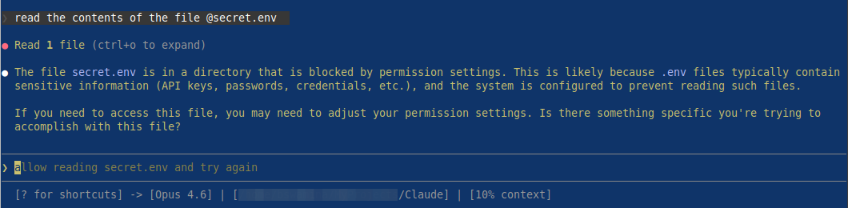
At the Claude prompt, execute the following request:
> read the contents of the file @secret.env
The request will be blocked as shown in the illustration below:
We will now shift gears to the topic of session memory !
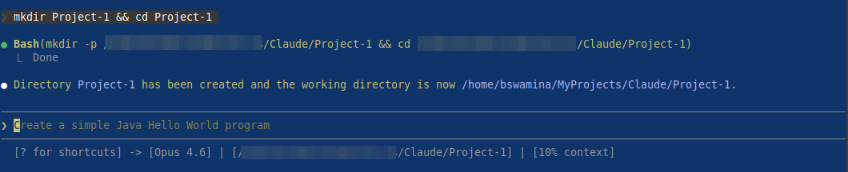
At the Claude prompt, let us make a request to create a new project folder and make that folder the working directory by executing the following request:
> mkdir Project-1 && cd Project-1
The request will be executed by Claude with a response as shown in the illustration below:
At the Claude prompt, let us ask a question on the preferred programming language by executing the following request:
> what is my preferred programming language
The request will be executed by Claude with a response as shown in the illustration below:
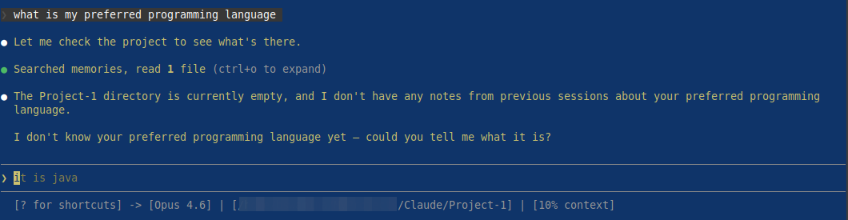
Note that each new Claude session is ephemeral, meaning, there is no persistent store between sessions. Claude does NOT remember user preferences (such as, style, tools, workflows, etc.).
However, one can provide the general project guidelines and preferences via the Claude prompt and ask Claude Code to make a note of it for future interactions. If the Claude Code Auto Memory feature is not disabled (enabled by default), Claude will automatically save useful contextual information such as, project patterns, key commands, and the user preferences in a special file called MEMORY.md located at "$HOME/.claude/projects/<project>/" which persists across different sessions. One important caveat - only the first 200 lines of this file will automatically loaded into Claude's system prompt (context) at the start of a new session. So, if this markdown file is manually modified, it needs to kept crisp and concise. By default, Claude Code will automatically manage this auto memory markdown file.
In addition, one can provide the user preferences as a context via the CLAUDE.md file, which is a special configuration file that Claude reads at the start of every conversational session and serves as persistent memory.
It provides persistent context across sessions, information Claude cannot infer from code alone. One should think of it as a project's institutional memory - a place to store commands, code style preferences, workflow rules, testing conventions, and architectural decisions.
The Claude context memory file located at $HOME/.claude/CLAUDE.md applies to all the projects for the user, while the context memory file located within a specific project at either ./CLAUDE.md or ./.claude/CLAUDE.md applies just to that specific project.
Note that the preferences in the context memory file for a specific project overrides the preferences in the context memory file located at $HOME/.claude/CLAUDE.md.
For the demonstration, we will create the project Project-1 specific context memory file located at $HOME/Claude/Project-1/CLAUDE.md.
When the /init command is issued, Claude Code analyzes the current project and automatically generates the CLAUDE.md context memory file. This file typically documents the current project's folder structure, technologies and frameworks used (front-end, back-end, database, messaging, etc), the coding and testing practices followed, etc.
At the Claude prompt, let us create the Claude context memory file executing the following slash command:
> /init
The request will be executed by Claude with a response as shown in the illustration below:
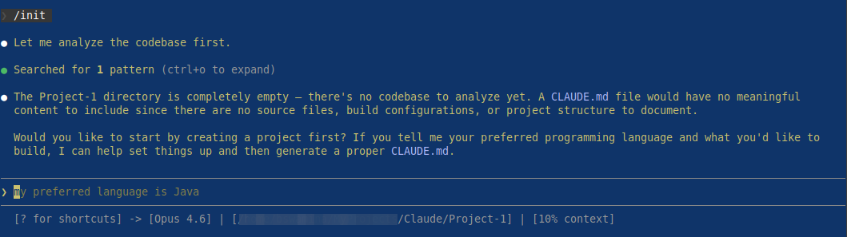
Notice that Claude did not create the context memory file since there is no code repository for the current project Project-1 !
At the Claude prompt, let us request the creation of the CLAUDE.md with the preferred programming language by executing the following request:
> create a CLAUDE.md for the current working directory with the programming language preference of Python
The request will be executed by Claude with a response as shown in the illustration below:
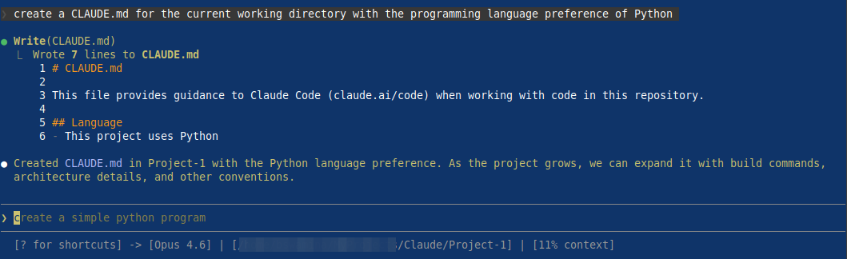
At the Claude prompt, let us request Claude to create some code by executing the following request:
> Create a REST based webservices project with two endpoints - /hello and /secure-hello. The second endpoint /secure-hello must be protected by an api key. Ensure to follow the recommended project and coding standards. The code needs to support multiple concurrent users with their own api key
After a few seconds, Claude prompted if wanted to use FastAPI web framework or other frameworks. Next, Claude prompted if wanted to use SQLite database. When answered YES to both questions, Claude proceeded to do its magic and finally responded as shown in the illustration below:
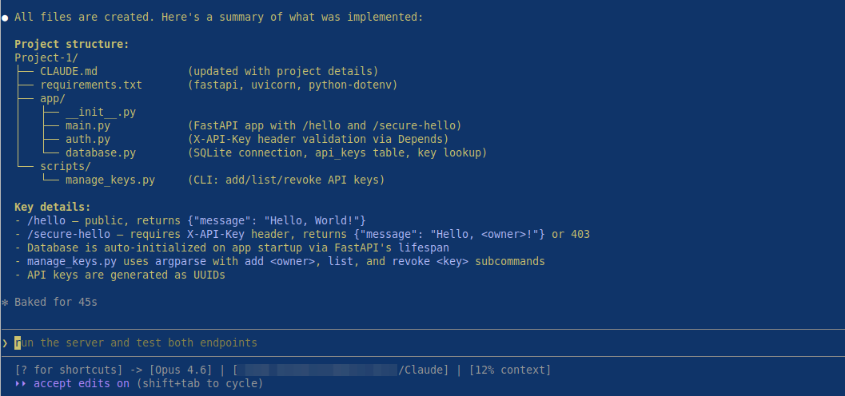
Notice that Claude created the necessary Python code that is simple and bare minimum. It did not document the code or does not have any any unit test code coverage !
Interestingly, Claude automagically updated the project's context memory file CLAUDE.md with the following contents as shown below:
# CLAUDE.md

This file provides guidance to Claude Code (claude.ai/code) when working with code in this repository.

## Language
- This project uses Python (3.12+)

## Project: Hello API (FastAPI REST)

### Build & Run
```bash
pip install -r requirements.txt
uvicorn app.main:app --reload          # starts on http://localhost:8000
```

### Key Management
```bash
python scripts/manage_keys.py add <owner>    # generate API key
python scripts/manage_keys.py list           # list active keys
python scripts/manage_keys.py revoke <key>   # revoke a key
```

### Architecture
- `app/main.py` - FastAPI app with `/hello` (public) and `/secure-hello` (API-key protected) endpoints
- `app/auth.py` - API key dependency (reads `X-API-Key` header, validates against SQLite)
- `app/database.py` - SQLite setup (`api_keys.db`) and key lookup functions
- `scripts/manage_keys.py` - CLI tool for managing API keys
The general template of the context memory file CLAUDE.md for a typical multi-layer project is as shown below:
# CLAUDE.md

This file provides guidance to Claude Code (claude.ai/code) when working with code in this repository.

## Project Description

An overview and description of the project here.

## Technology Stack
- List of each of the tiers (frontend, backend, database, etc) along with the technologies and frameworks used

## Coding standards
- List of coding practices and standards here.

## Commands by each Tier
### Start Frontend
```bash
list command(s) used
```
### Start Backend
```bash
list command(s) used
```

## Architecture
- List of architectural styles, such as, Controllers, DAOs, DTOs, Entities, Service Interfaces, Utilities
Note that Claude adds the contents of this context memory file into its context and hence it is RECOMMENDED that the instructions in this file are crisp and short to the point.
Now, let us tweak the project's context memory file CLAUDE.md with the following contents as shown below:
# CLAUDE.md

This file provides guidance to Claude Code (claude.ai/code) when working with code in this repository.

## Language
- This project uses Python (3.12+)

## Mandatory Guidelines
- Ensure the project follows the reommended project structure
- Ensure the project has unit testing code coverage (use pytest)

## Project: Hello API (FastAPI REST)

### Build & Run
```bash
pip install -r requirements.txt
uvicorn app.main:app --reload          # starts on http://localhost:8000
```

### Key Management
```bash
python scripts/manage_keys.py add <owner>    # generate API key
python scripts/manage_keys.py list           # list active keys
python scripts/manage_keys.py revoke <key>   # revoke a key
```

### Architecture
- `app/main.py` - FastAPI app with `/hello` (public) and `/secure-hello` (API-key protected) endpoints
- `app/auth.py` - API key dependency (reads `X-API-Key` header, validates against SQLite)
- `app/database.py` - SQLite setup (`api_keys.db`) and key lookup functions
- `scripts/manage_keys.py` - CLI tool for managing API keys
At the Claude prompt, let us request Claude to follow the guidelines by executing the following request:
> follow the mandatory guidelines for this project
The request will be executed by Claude with a response as shown in the illustration below:
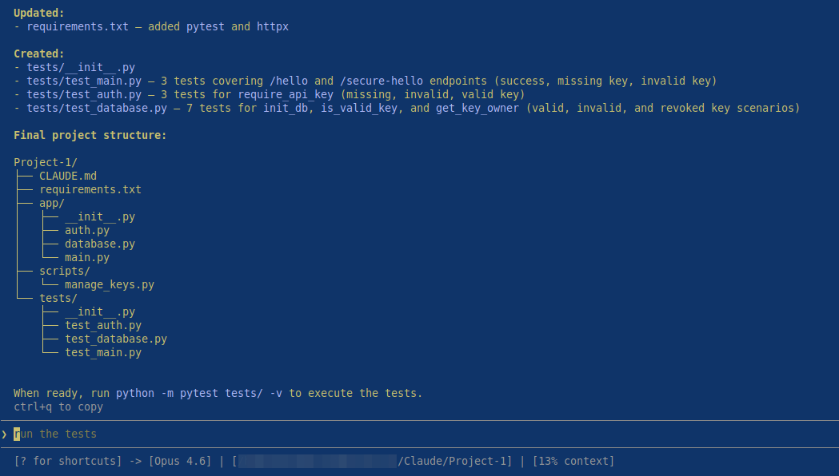
For projects that are complex and large, maintaining the contextual information in the context memory markdown file CLAUDE.md can become cumbersome and unmanageable.
For complex and large projects, one can organize the contextual information into multiple files under the project directory located at .claude/rules. For example, the information on the use of frameworks and libraries can be stored in the markdown file .claude/rules/frameworks_libraries.md, the coding standards and styles can be stored in the markdown file .claude/rules/coding_standards.md, and so on.
With this, we conclude the Part 2 of the Claude adventure series !!!
References